Set the default message expiration
Every secure message stays available to view for a set period of time. You can shorten that window by giving messages an expiration — and, as an administrator, you can make a default expiration the standard for everyone through a message policy.
In short: retention is the maximum time a message stays available (set by your plan), and expiration is an optional, shorter cutoff you add on top. Setting “Use default retention” simply means no expiration — the message stays available for its full retention period. For the full explanation, including how this differs for your subscription users and for free / guest recipients, see Retention vs. expiration.
Set a default expiration
You must be an administrator to change Message Security Settings for your organization.
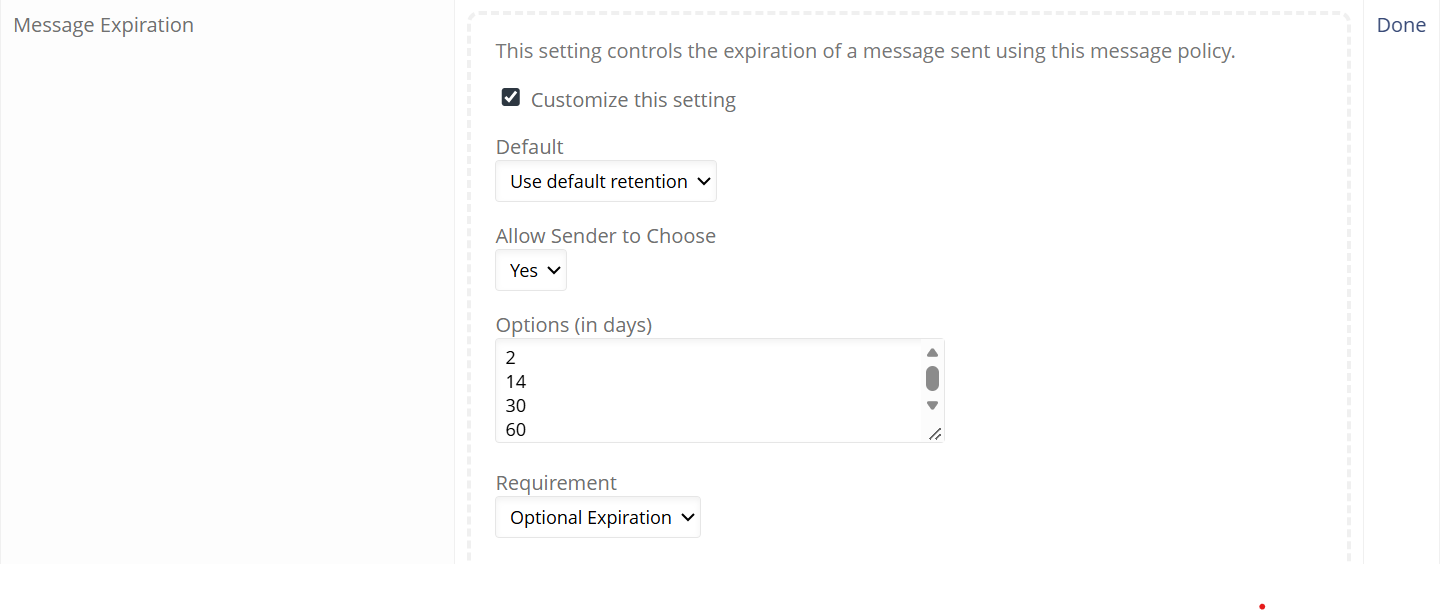
Here is the Message Expiration section inside a message policy:
- Sign in to your dashboard at app.senditsecure.com.
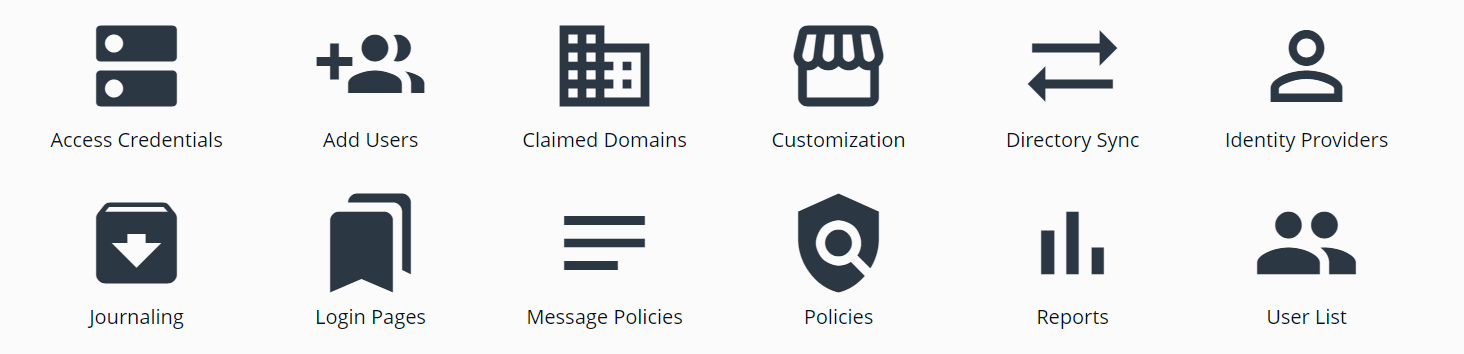
- Open Message Policies.
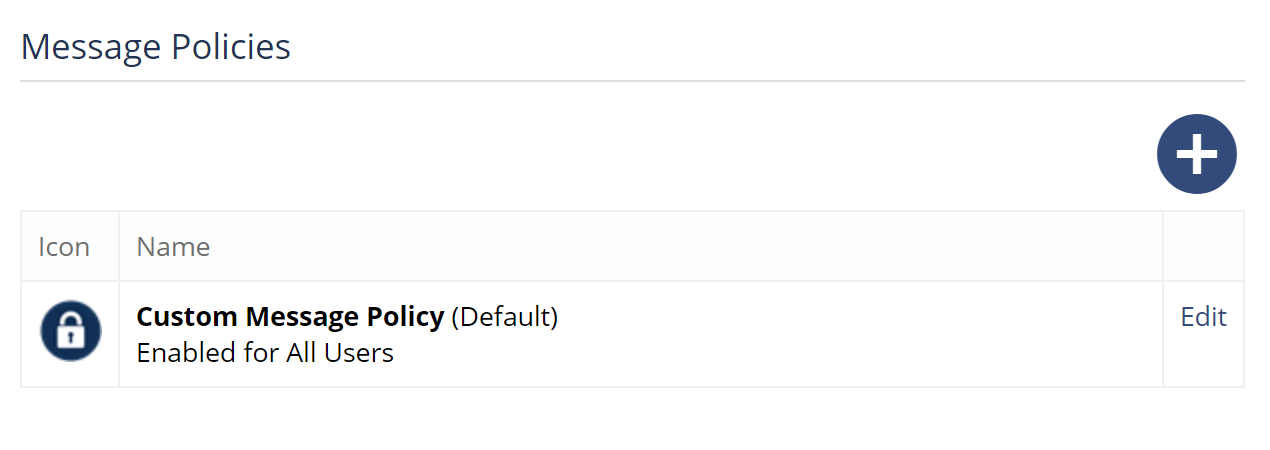
- Click Edit on the message policy you want to change, or use the + button to create a new custom policy.
- Scroll down to the Message Expiration section, and check Customize this setting.
- Default — set the expiration applied automatically. Choose Use default retention for no expiration (messages stay available the full retention period), or pick a number of days.
- Allow Sender to Choose — select Yes to let senders change the expiration on an individual message, or No to lock it to your default.
- Options (in days) — the list of expiration lengths senders can choose from (by default 2, 14, 30, 60, 90, 180, 365, and 730). Add a number to make that expiration available, or remove one to take it off the list. Enter one number on each line.
- Requirement — choose Optional Expiration so senders can select an expiration from the dropdown (or leave it off), or require an expiration. If you set it to require expiration, the sender can't change or select from the Message Expiration dropdown for messages sent under this policy.
- Click Done, then scroll down and click Save Changes.
The expiration you set applies to the message policy you're editing — if your organization has more than one policy, each can have its own default.
|
Our recommendation: for your default message policy, keep the Default set to Use default retention. That way messages stay available for your full retention period unless a sender deliberately chooses a shorter expiration — which is usually what you want for day-to-day sending. |
For more sensitive material, it's often useful to create a second message policy with a shorter expiration built in. For example, a “Highly Confidential” policy might set the Default expiration to a period well under your retention window — say 14 days — so those messages always close on their own sooner. Senders then simply pick that policy when composing anything especially sensitive, while everyday messages keep following your full retention period.
|
Don't forget to set your default message policy. For your new default expiration to be the one your team actually uses, make sure this policy is set as your organization's default message policy (or the policy your senders select when composing). Senders can still choose a different expiration on any individual message. |
What happens when a message expires
- The recipient can no longer open, download, or reply to the message — and neither can the sender.
- The message still appears in your list, and the Proof of Delivery log keeps the time-stamped record of who opened it and when.
- Expiration is permanent for that message. If you simply need it available longer, send a fresh copy.
Expiration vs. revoke
Expiration is automatic — you (or your policy) choose a time up front. If you need to close access to a single message sooner, you can revoke it by hand at any time. Use either, or both together.
Changing or removing a default expiration
You can update the default at any time by editing the policy. Removing a default expiration lets messages follow your full retention period again. Depending on how it's applied, this can affect messages already sent (any that haven't yet passed their window) as well as everything sent going forward — if you're not sure, reach out to our team and we'll help you set it the way you want.