Oasys Integration Setup
To send HIPAA-compliant, encrypted email through Send It Secure from Oasys, you'll create an Access Credential in Send It Secure and enter it in your Oasys email (SMTP) settings. That credential acts as the username and password Oasys uses to send.
Oasys is also referred to as Oasys Crossfire.
|
Admin only. You must be an administrator to create an access credential on a user. |
Set up the integration
- Create an access credential in Send It Secure. Don't see the API & SMTP options (or the option to create an Access Credential) for this user? They may not be enabled for your subscription. Reach out at support.senditsecure.com and we'll review your subscription features and get it turned on.
- Keep the API & SMTP page open — you'll copy values from it in a moment.
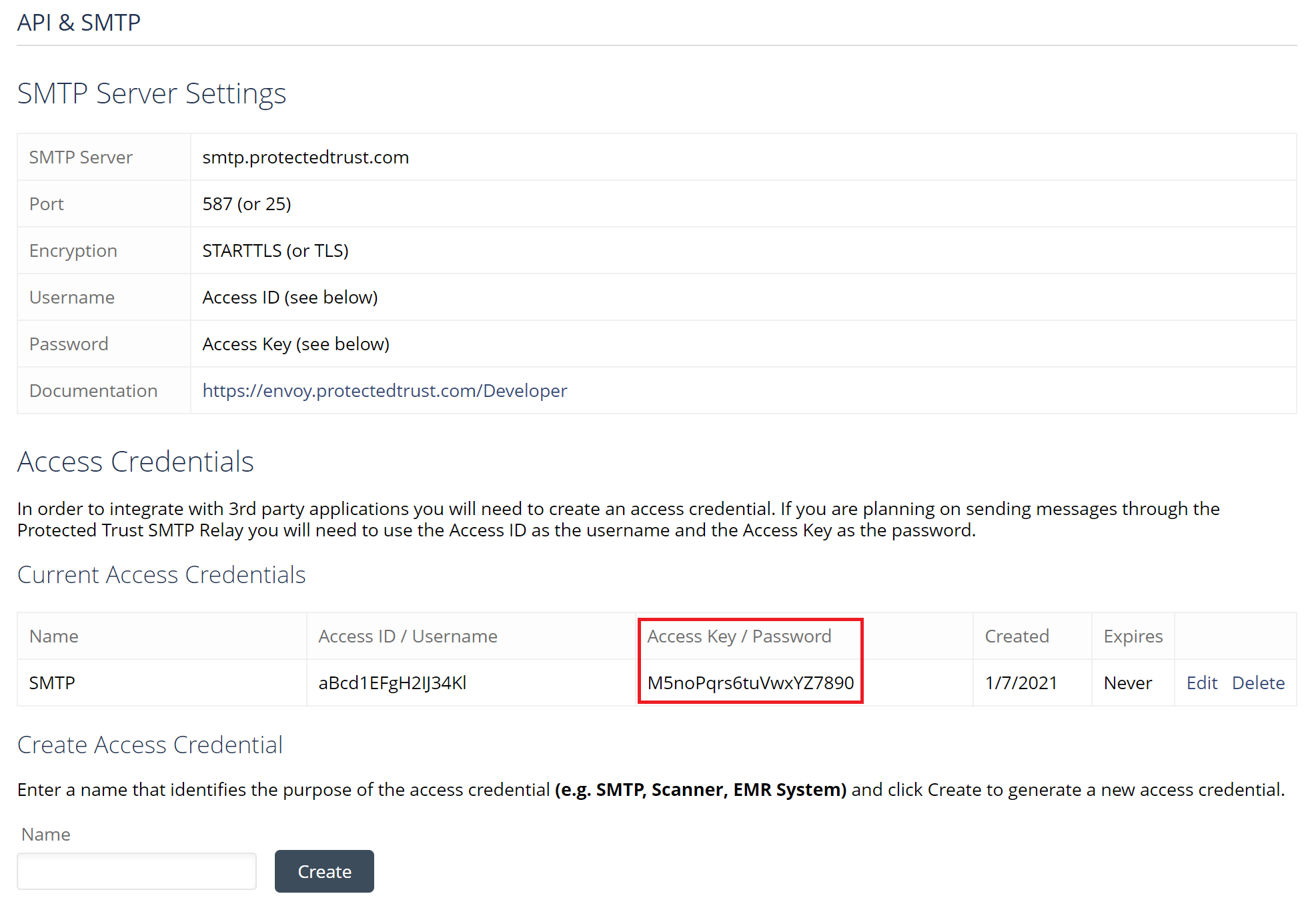
- In Oasys, the SMTP settings must be entered in two places — use the same values in both:
- The Enterprise tab
- The Locations (Practice) tab
- In each location, enter the values below using the API & SMTP page you left open:
| Oasys field | Enter |
| Sender email address | The Send It Secure user's email address |
| Username | Your Send It Secure Access ID |
| Password | Your Send It Secure Access Key |
| SMTP / Outgoing Server | smtp.protectedtrust.com |
| Port | 587 |
| Is SSL | Checked (enabled) |
[screenshot: Enterprise tab — SMTP settings]
[screenshot: Locations (Practice) tab — SMTP settings]
|
Set it in both places. If the SMTP settings are entered on only one tab, sending can still fail — make sure the Enterprise tab and the Locations (Practice) tab both have the same values. |
- Save the settings on both tabs, then send a test message to confirm it works.
Troubleshooting
Oasys can't send — mail delivery failure / TLS / secure connection errors
This is the most common Oasys issue — a mail delivery failure or TLS error when sending. It usually means the machine is offering outdated encryption. Our SMTP service requires modern TLS:
- TLS 1.2 or TLS 1.3 (TLS 1.0 and 1.1 are not accepted)
- A modern ECDHE cipher suite with forward secrecy — for example
TLS_AES_256_GCM_SHA384(TLS 1.3) orTLS_ECDHE_RSA_WITH_AES_256_GCM_SHA384(TLS 1.2) - Older
TLS_RSA_*cipher suites are not accepted
You can list the machine's enabled cipher suites in PowerShell to confirm a modern ECDHE suite is present:
Get-TlsCipherSuite | Format-Table Name
Then set these registry values so .NET Framework 4.x uses strong cryptography and the system's default (modern) TLS versions. The WOW6432Node entries cover 32-bit applications on 64-bit Windows:
HKLM:\SOFTWARE\Microsoft\.NETFramework\v4.0.30319
    SchUseStrongCrypto        = 1   (DWORD)
    SystemDefaultTlsVersions  = 1   (DWORD)

HKLM:\SOFTWARE\WOW6432Node\Microsoft\.NETFramework\v4.0.30319
    SchUseStrongCrypto        = 1   (DWORD)
    SystemDefaultTlsVersions  = 1   (DWORD)
Restart the application (or the machine) for the change to take effect, then try sending again. For a deeper IT walkthrough, we can send our SMTP TLS troubleshooting guide.
Still stuck? Open a ticket at support.senditsecure.com (or email support@senditsecure.com) and we'll help.