XDR Radiology Integration Setup
New to this? See why practices use Send It Secure with XDR → Send HIPAA-compliant, encrypted email from XDR Radiology.
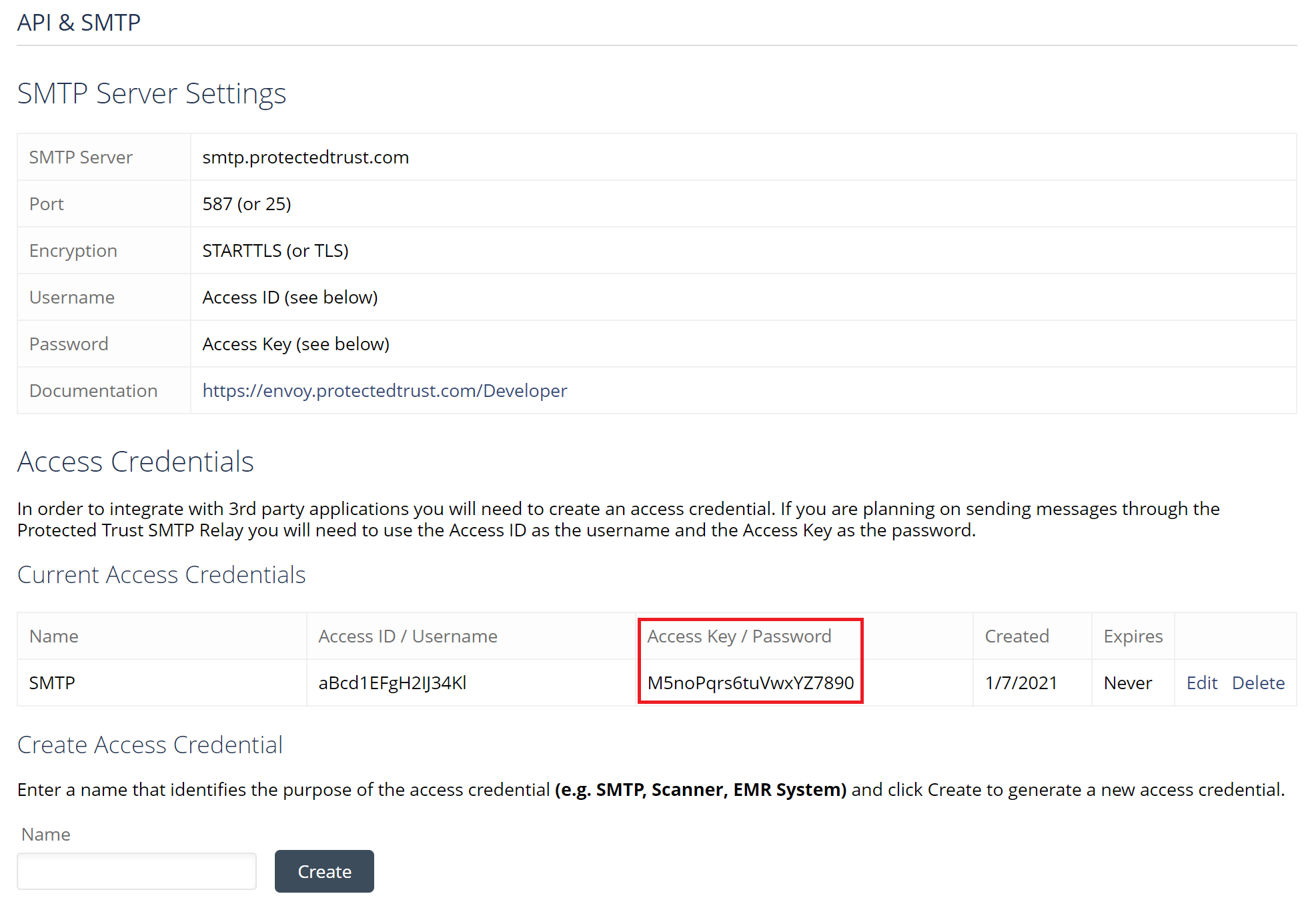
To send HIPAA-compliant, encrypted email through Send It Secure from XDR, you'll create an Access Credential in Send It Secure and enter it in your XDR email (SMTP) settings. That credential acts as the username and password XDR uses to send.
XDR is also known as XDR Radiology, XDR Bridge, XDR imaging, or XDR x-rays.
|
Admin only. You must be an administrator to create an access credential on a user. |
Set up the integration
- Create an access credential in Send It Secure. Don't see the API & SMTP options (or the option to create an Access Credential) for this user? They may not be enabled for your subscription. Reach out at support.senditsecure.com and we'll review your subscription features and get it turned on.
- Keep the API & SMTP page open — you'll copy values from it in a moment.
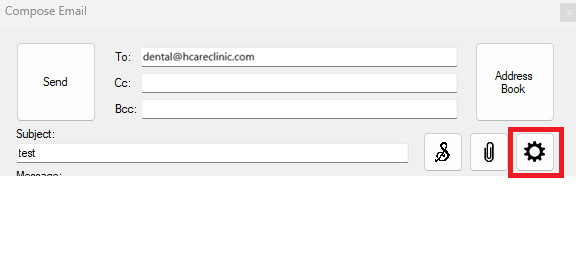
- In XDR, open the email / SMTP settings — shown below.
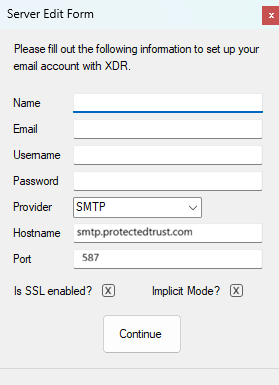
- Enter the values below using the API & SMTP page you left open:
| XDR field | Enter |
| Sender email address | The Send It Secure user's email address |
| Username | Your Send It Secure Access ID |
| Password | Your Send It Secure Access Key |
| SMTP / Outgoing Server | smtp.protectedtrust.com |
| Port | 587 |
| Is SSL | Checked (enabled) |
- Save the settings. That's it — send from XDR as you normally would. When a send is successful, the message window simply closes and the email is sent; there's no banner or confirmation message.
Troubleshooting
XDR (or an imaging / X-ray app) can't send — TLS / secure connection errors

This can affect XDR and other apps that send through SMTP — such as imaging, X-ray, or practice-management programs. If sending fails with a TLS or secure-connection error, the machine's .NET Framework apps may be falling back to older protocols. Confirm TLS 1.2 and TLS 1.3 are enabled, and that the enabled cipher suites match what our SMTP service requires — you can list them in PowerShell:
Get-TlsCipherSuite | Format-Table Name
Then set these registry values so .NET Framework 4.x uses strong cryptography and the system's default (modern) TLS versions. The WOW6432Node entries cover 32-bit applications on 64-bit Windows:
HKLM:\SOFTWARE\Microsoft\.NETFramework\v4.0.30319
    SchUseStrongCrypto        = 1   (DWORD)
    SystemDefaultTlsVersions  = 1   (DWORD)

HKLM:\SOFTWARE\WOW6432Node\Microsoft\.NETFramework\v4.0.30319
    SchUseStrongCrypto        = 1   (DWORD)
    SystemDefaultTlsVersions  = 1   (DWORD)
Restart the application (or the machine) for the change to take effect, then try sending again.
Still stuck? Open a ticket at support.senditsecure.com (or email support@senditsecure.com) and we'll help.