Optimize Send It Secure Outlook Add-in App Settings
Steps to optimize the Send It Secure Outlook Add-in app settings
The Send It Secure Outlook Add-in is compatible with the New Outlook, Classic Outlook, Outlook for Mac, and Outlook on the web.
Confirm the Send It Secure Outlook Add-in app is installed and Pin for visibility
Confirm the Send It Secure Outlook Add-in app is installed and Pin for visibility
- Open Outlook (New, Classic, Mac, or on the web)
- Locate an email in your Inbox, and select it for preview
- In new Outlook, go to the navigation bar and select the Apps icon, see yellow highlight.
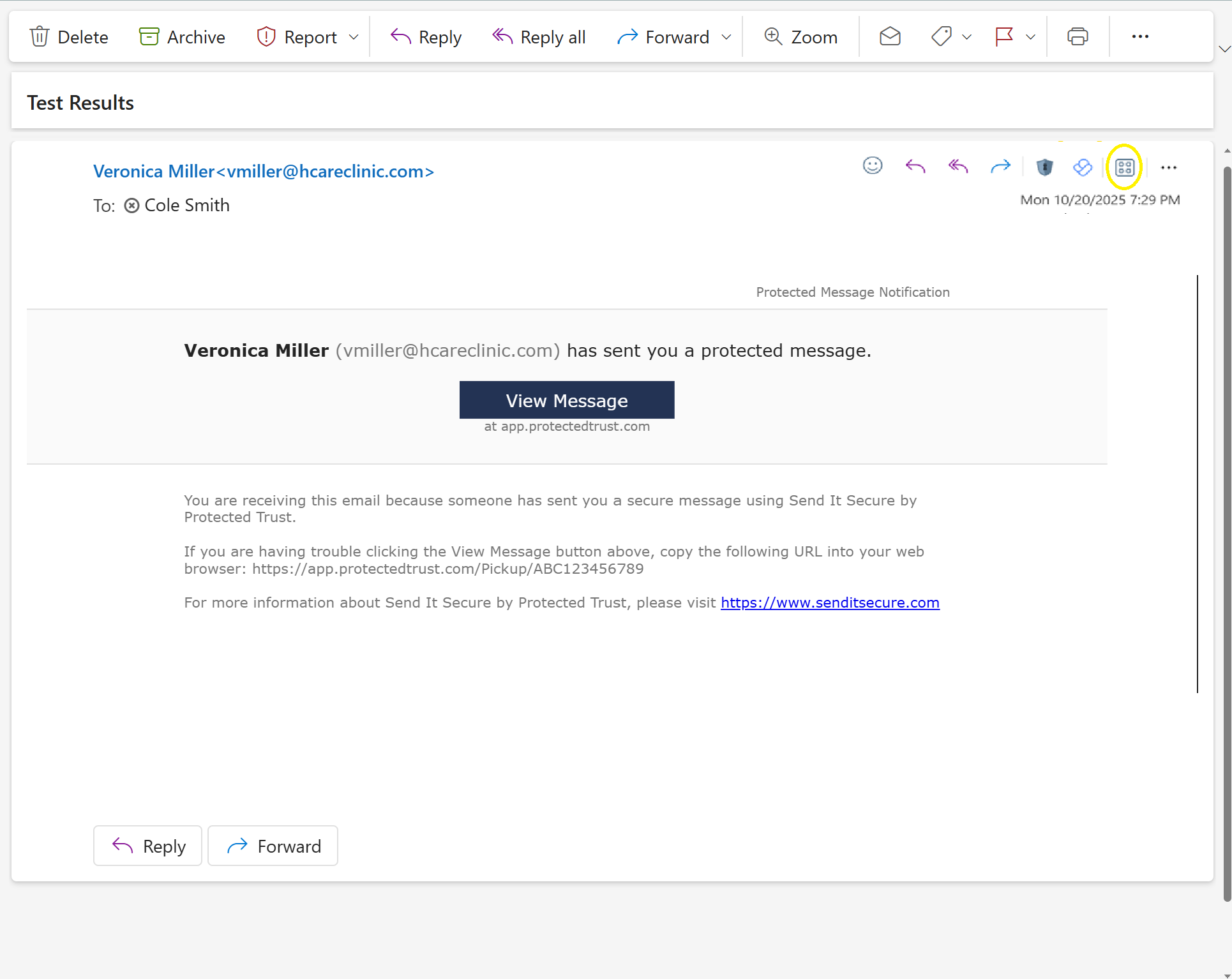
- The Installed Apps display, and you can confirm that the Send It Secure Outlook Add-in App has been installed
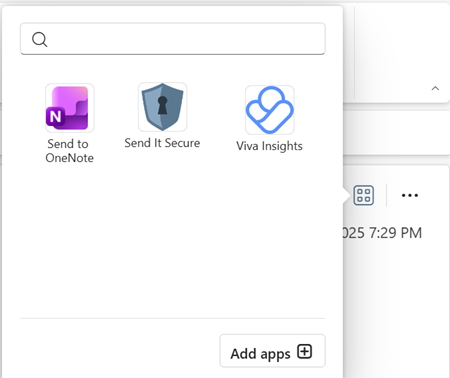
- Click on the Send It Secure icon. The add-in should open in the task pane. Click the pin to pin the app, so it remains visible.
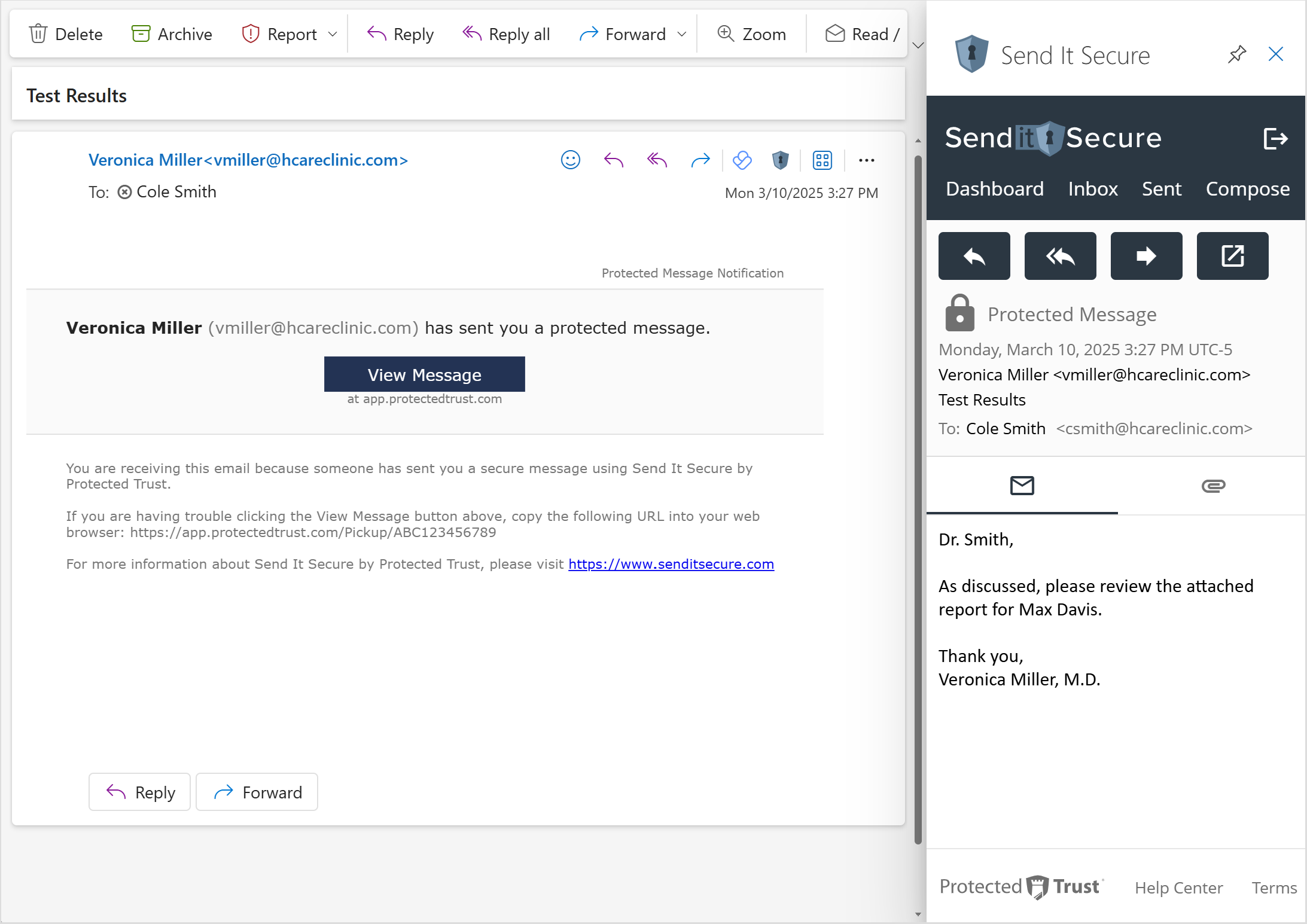
Note: You can also follow the same steps from More Apps (on the Home Ribbon) and Apps (on the Compose Ribbon)